 Hopkey
 themes
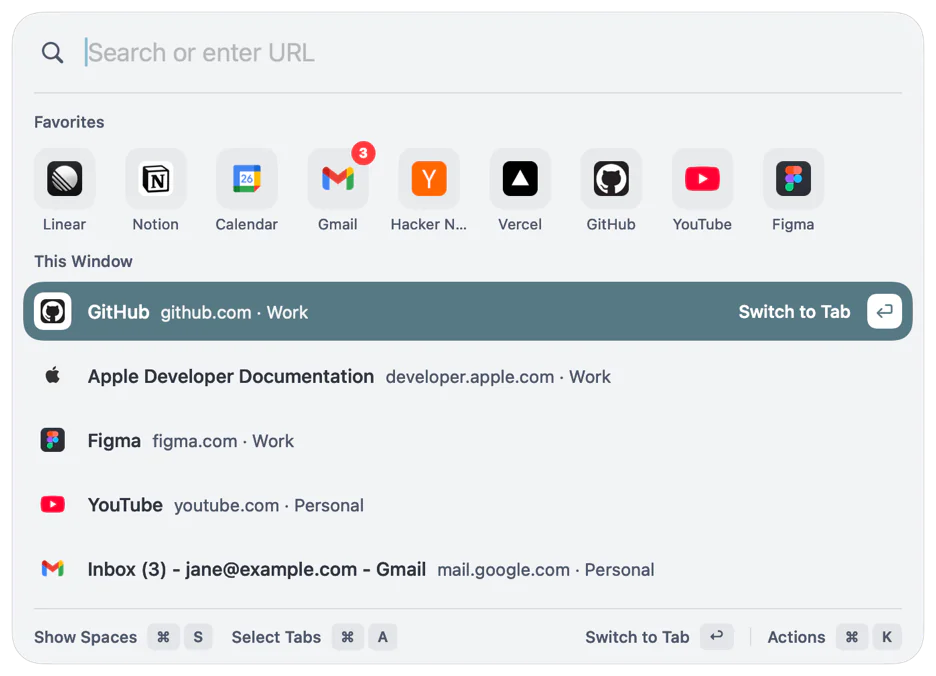
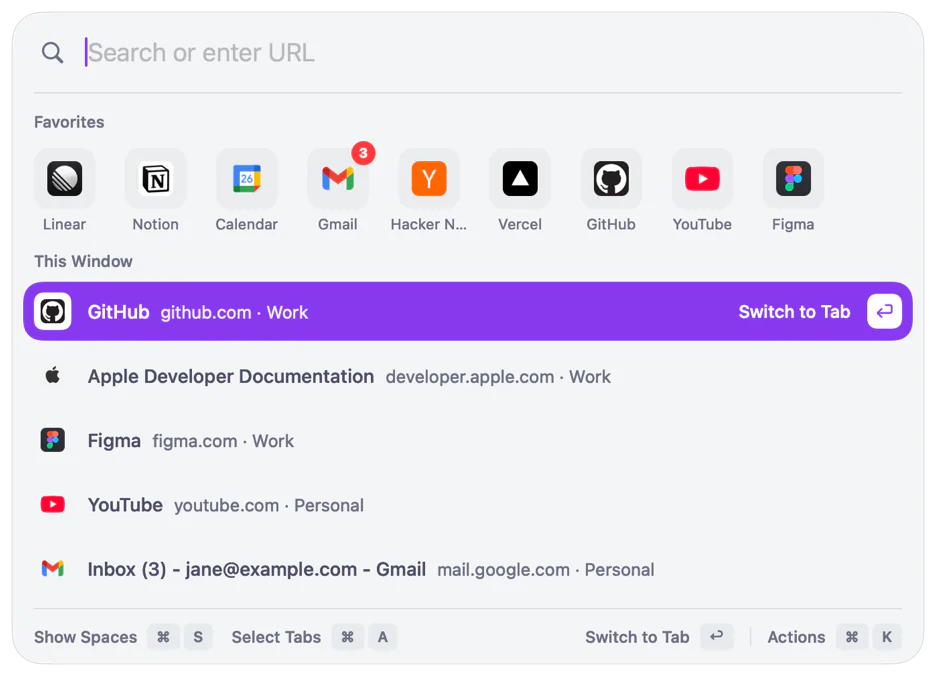
A theme sets the bar's background, text and highlight color, in a light and a dark version. Hopkey has 8 themes of its own, 15 ports of popular code editor themes, and a builder for your own.
- Free forever
- 14 days of Pro included
- macOS 14 or later, Apple silicon and Intel
Code editor themes
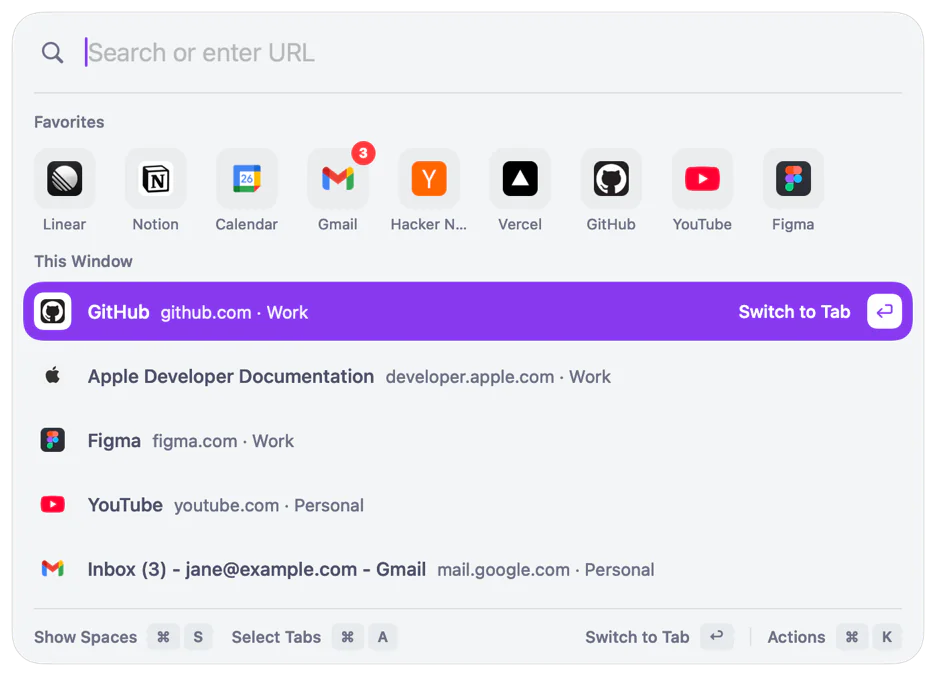
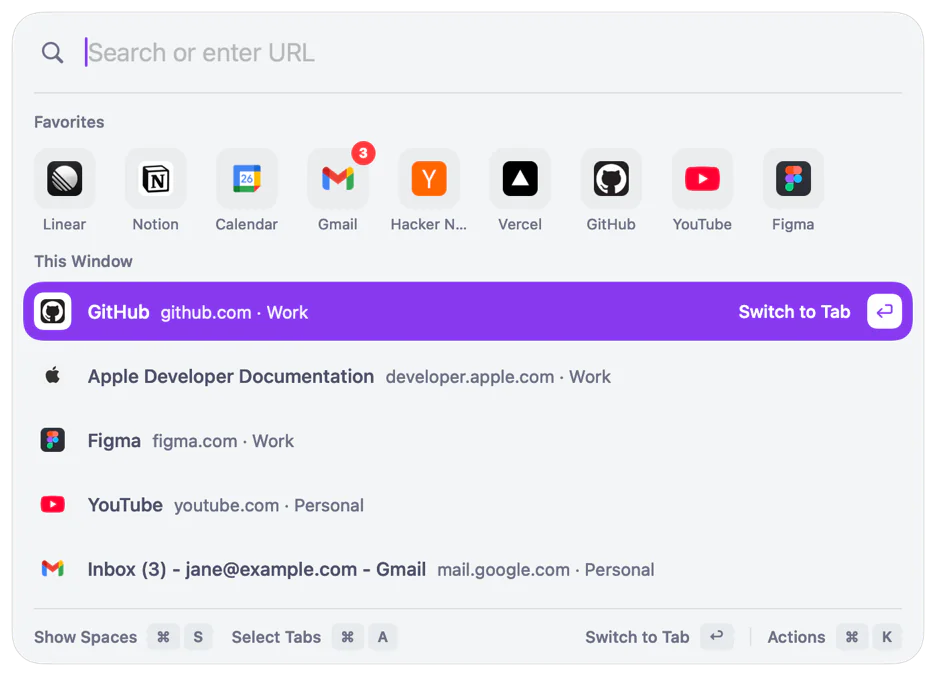
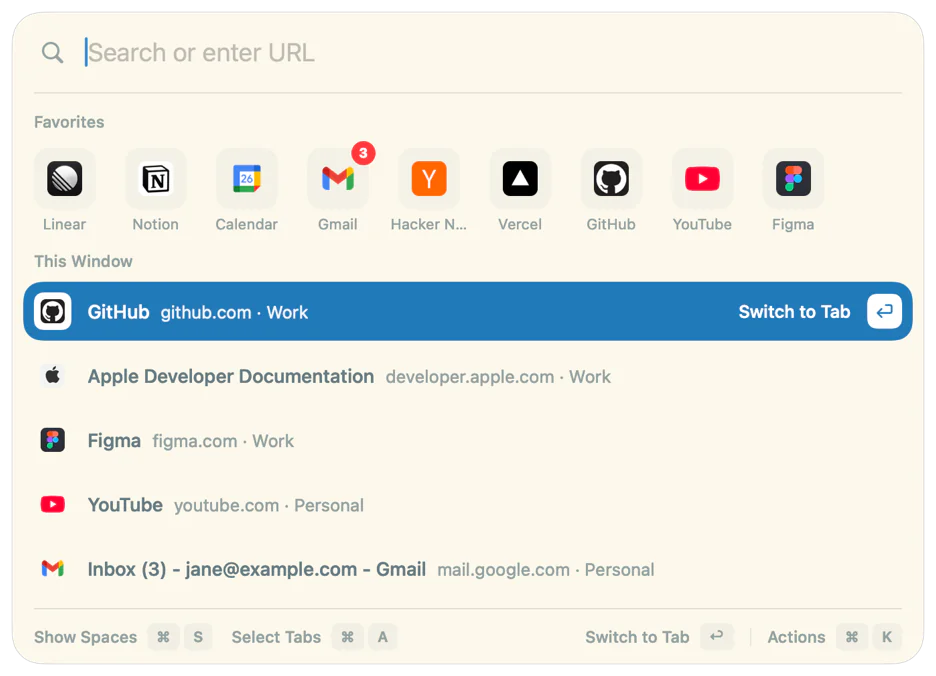
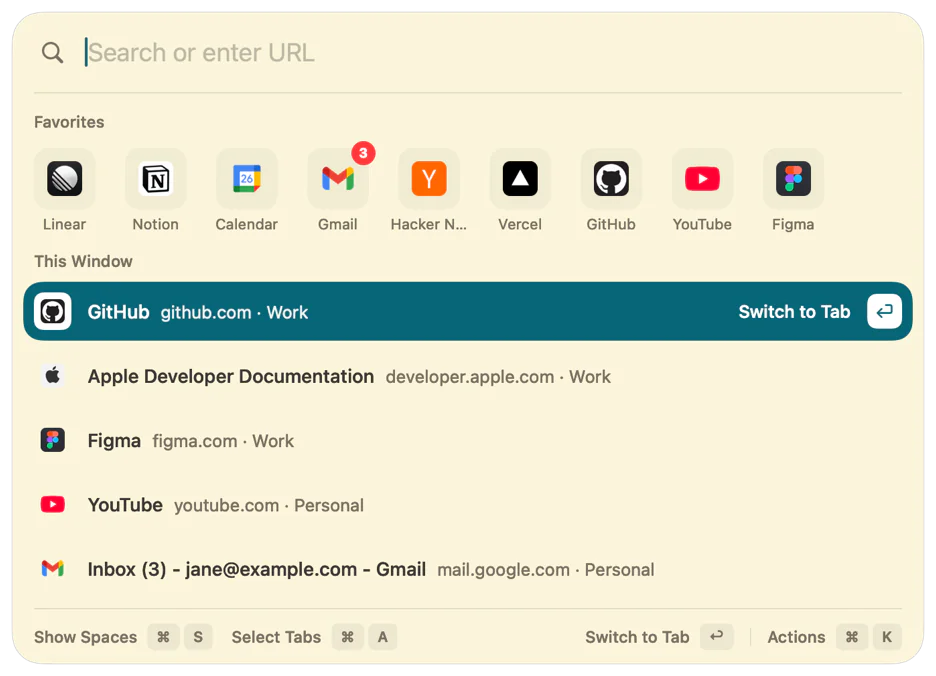
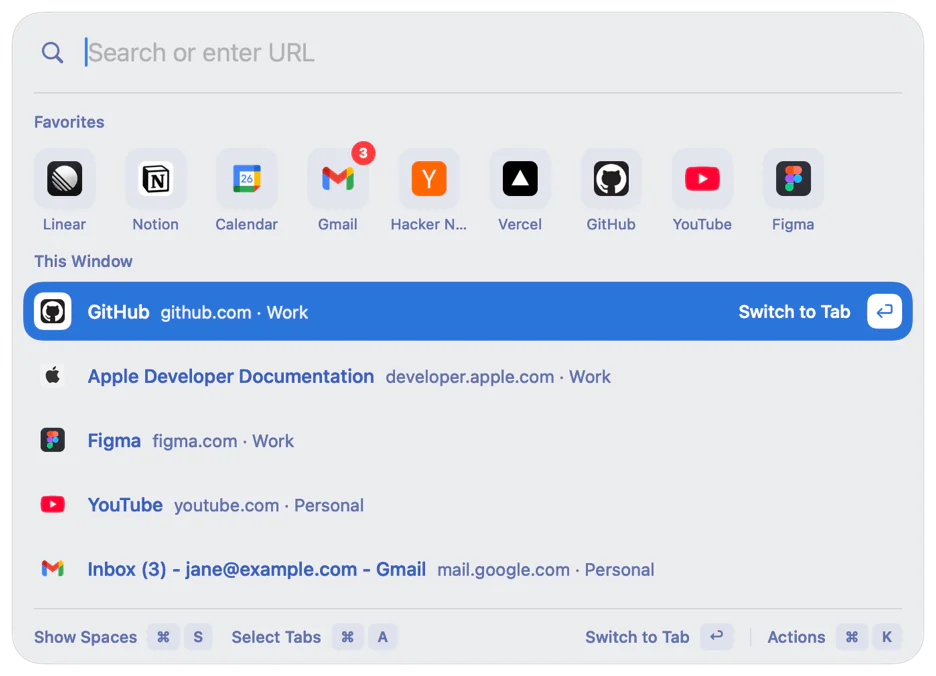
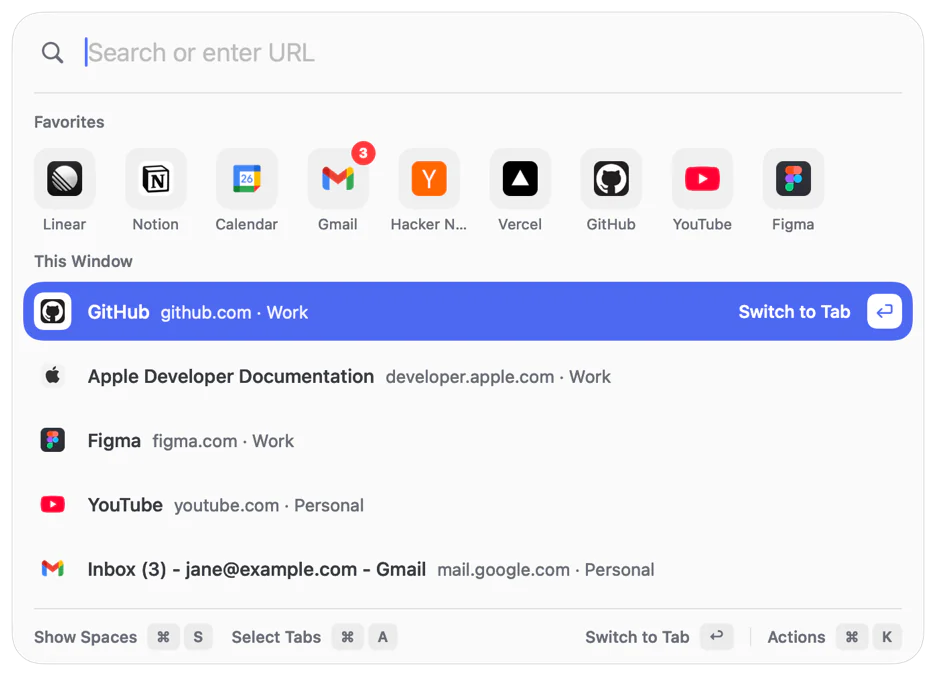
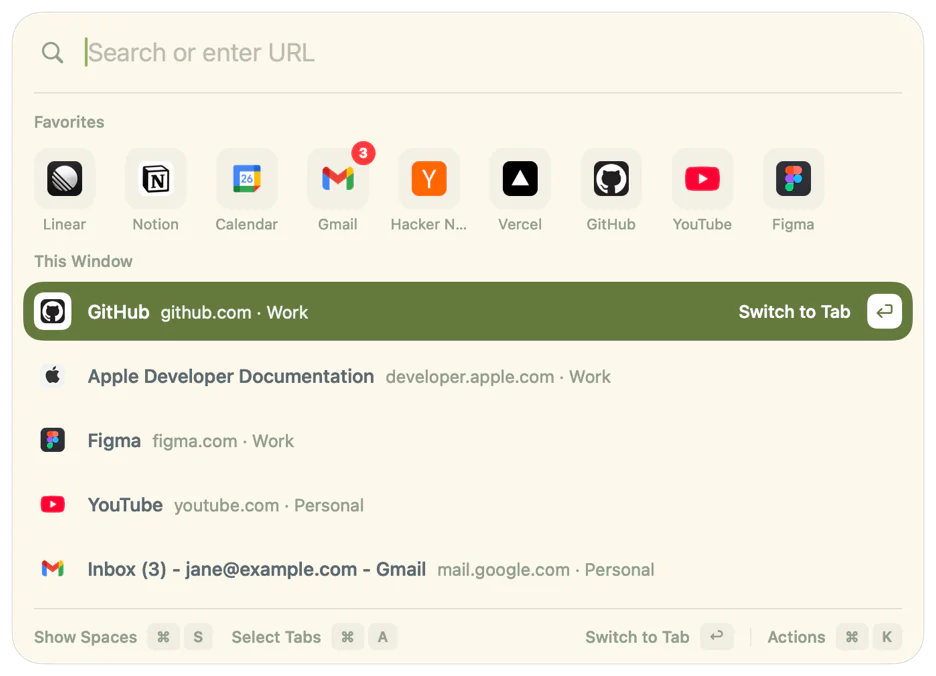
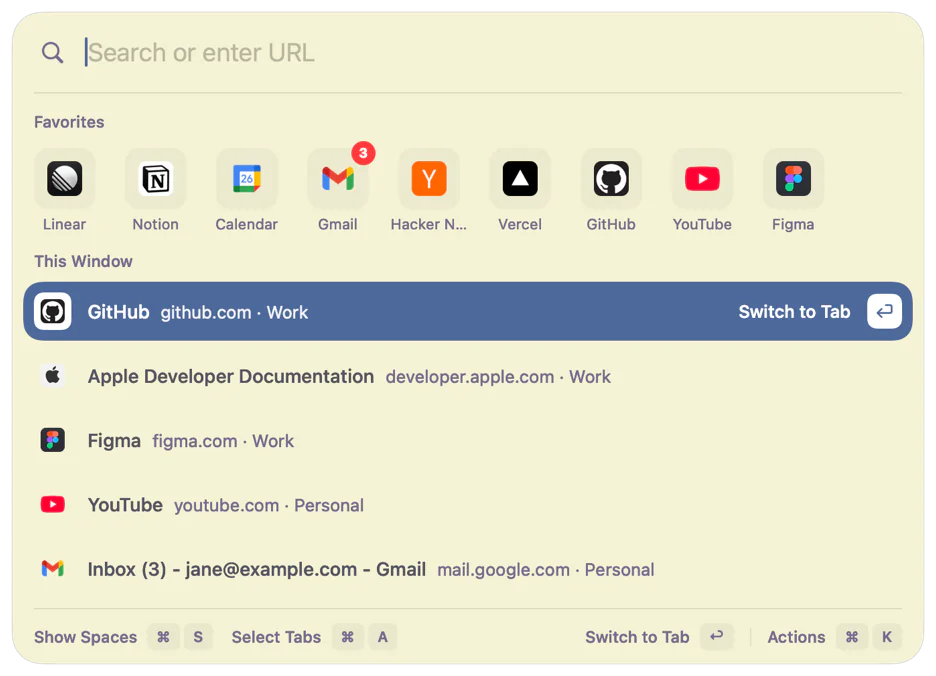
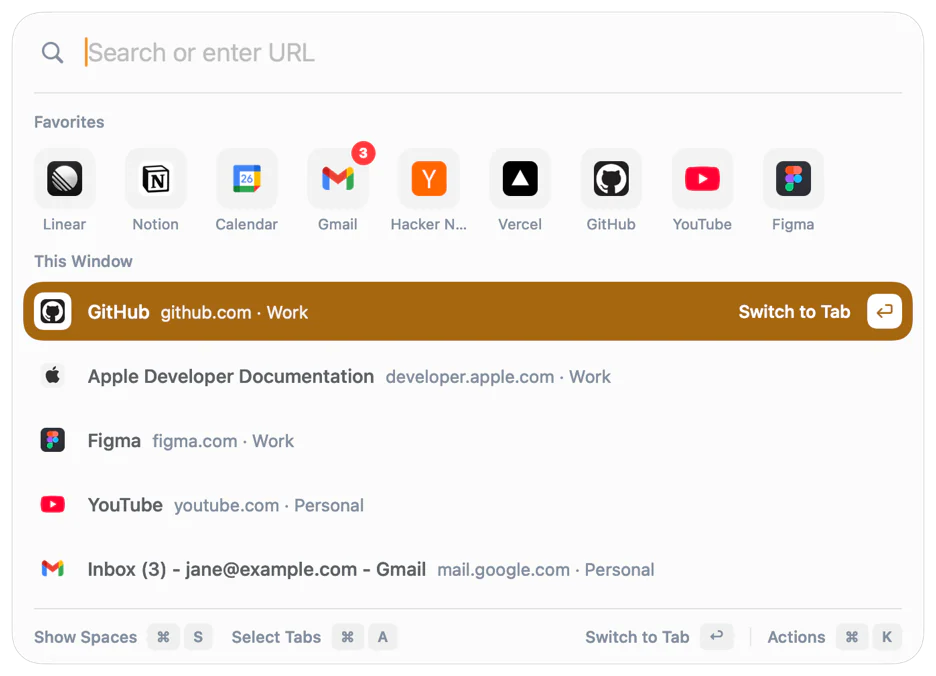
Each theme is a port of the scheme's own colors, credited to its authors and under its license. The pictures show the real bar. Switch every picture with Light and Dark, or click the two swatches on a card to switch only that theme.
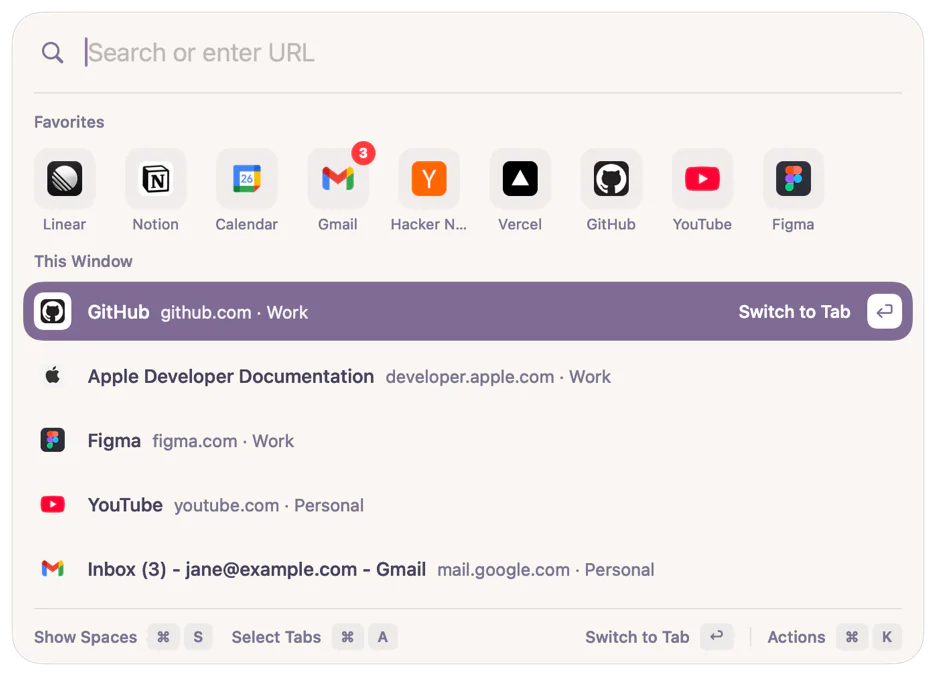
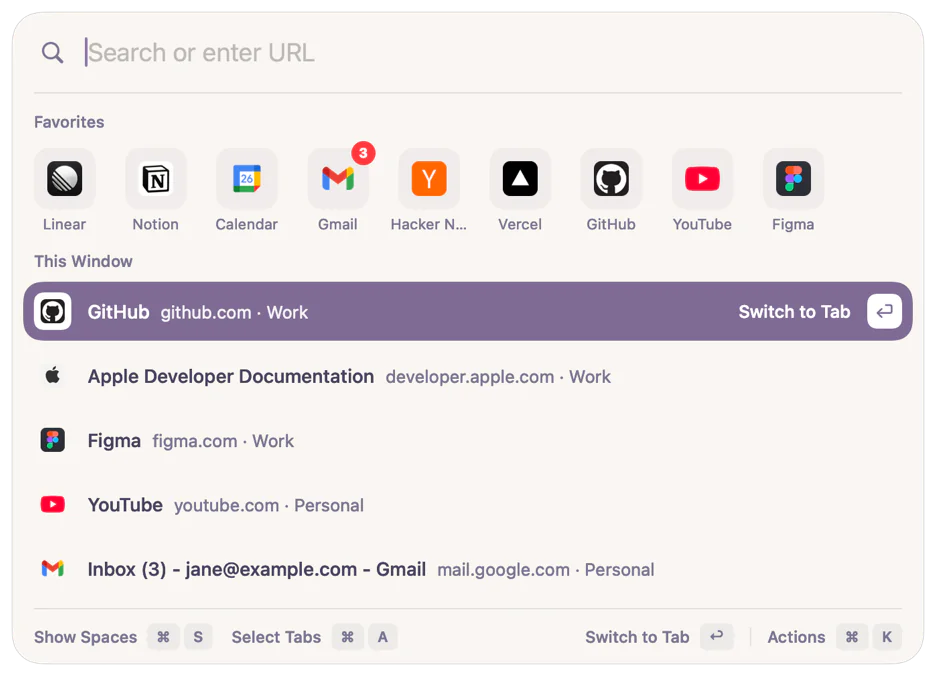
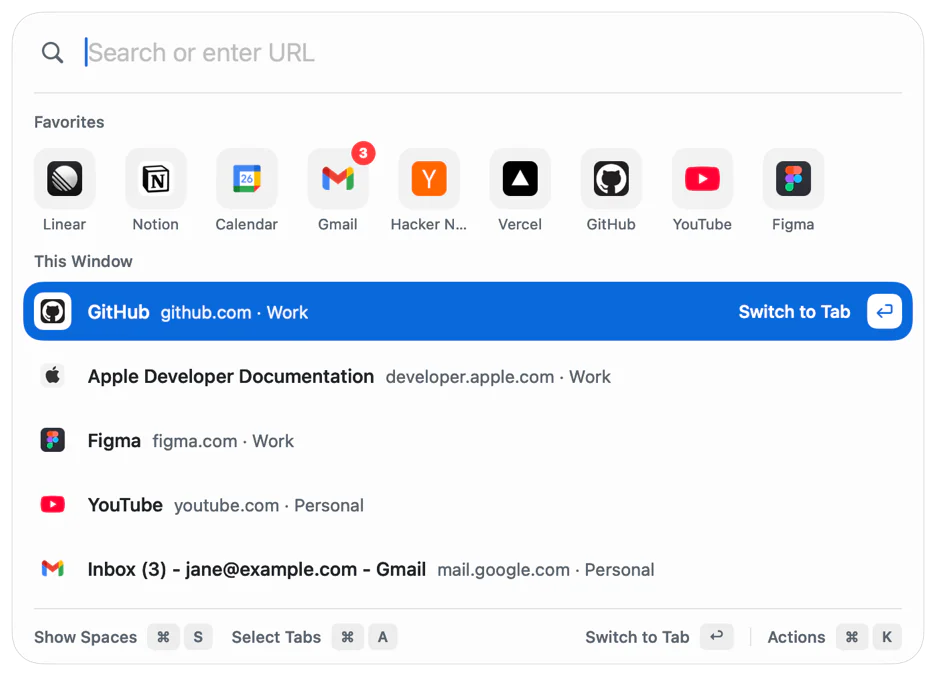
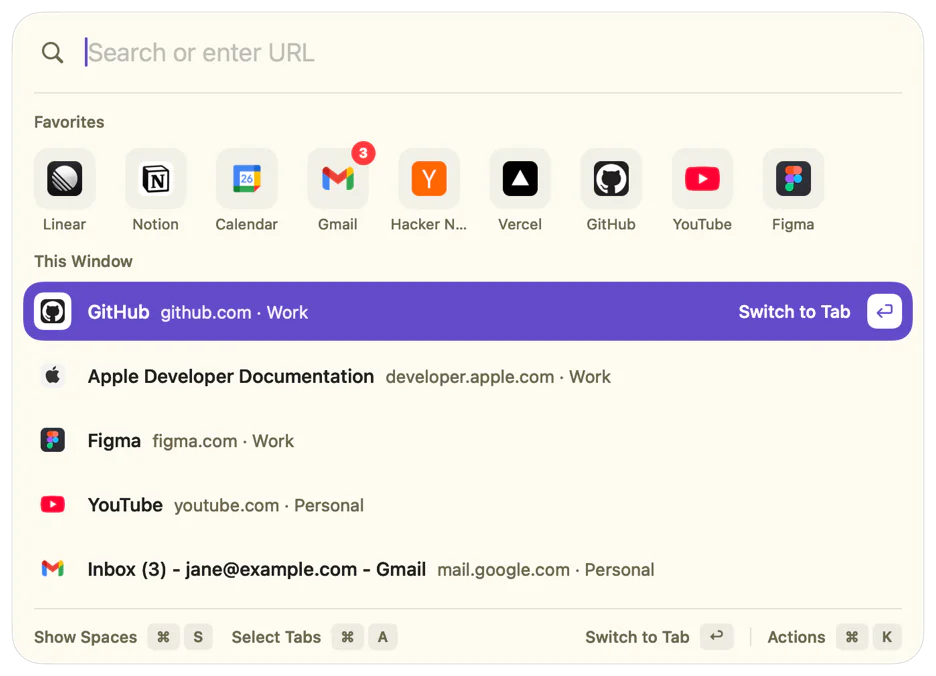


Hopkey's own themes
Hopkey is the default and uses Liquid Glass on macOS 26. Graphite is free too. Blue, Teal, Green, Purple, Pink and Orange tint the bar with one color.


Pick a theme
- Open Hopkey's Settings from the menu bar icon and choose Appearance.
- Under Theme, click a theme, or click Browse Themes… for the catalog.
- Press ⌘T. The panel uses the new colors.
A theme with both versions follows Appearance: Automatic, Light or Dark. A theme with one version keeps the panel light or dark.
Make your own
- Click New Theme…, or right-click any theme and choose Duplicate and Edit….
- Set the background, text, secondary text and highlight color for the light version, the dark version, or both.
- Click Save.
If the text is too hard to read on the background, Hopkey uses black or white text instead. Import… adds a theme from a JSON file.
Give each Space its own theme
- In Settings, open Saved.
- Right-click a Space and choose Edit Space….
- Pick a panel theme.
The panel switches to that theme while you are in that Space.
Size and font
In Settings › Appearance, Interface size makes the bar, its rows and its text smaller or larger, from 90% to 130%. Font switches between the system font and its rounded version.
Send a theme to the catalog
Right-click your theme and choose Submit to Catalog…. Your browser opens the contact form with the theme filled in. We review each theme before it goes in the catalog and credit you by the author name you set.
Questions and answers
Are themes free?
Hopkey and Graphite are free. The other themes, the catalog and your own themes are part of Hopkey Pro.
Which code editor themes does Hopkey have?
Rosé Pine, Rosé Pine Moon, GitHub, Dracula, Nord, Catppuccin, Catppuccin Frappé, Catppuccin Macchiato, Solarized, Gruvbox, Tokyo Night, Atom One, Everforest, Kanagawa and Ayu. Each has a light and a dark version.
Does a theme work in every browser?
Yes. The theme belongs to Hopkey's bar, so it looks the same over Safari, Chrome, Brave, Edge and Vivaldi. It does not change the browser's own colors.
Can a Space have its own theme?
Yes. In Settings, open Saved, right-click a Space, choose Edit Space… and pick a panel theme. The panel switches to it while you are in that Space.
Can I make the bar bigger?
Yes. Settings › Appearance › Interface size goes from 90% to 130% and changes the bar, its rows and its text.
Where are my themes stored?
On your Mac, in themes.json in Hopkey's Application Support folder. Export… saves a theme as a JSON file you can share.